Bibles
Instead of searching, copying, pasting, or typing in Bible verses into slides, Praisenter allows you to import, create, edit, and maintain any number of Bibles and use that content when presenting.
Praisenter doesn’t come packaged with a bible, but you can import Bibles from the following sources:
NOTE: Praisenter does not endorse any of the Bibles above or their contributors. Praisenter cannot guarantee the Bibles offered on these sites are accurate nor can we verify their content. You should also consider the copyright of each Bible before using or distributing them.
Books / chapters / verses#
Bibles are divided into books, and books are divided into chapters, and chapters are divided into verses. This is a standard pattern used historically to help with indexing, referencing, research, study, and so on. This structure also helps when it comes to presenting Bible verses on the screen and editing.
A Bible can have many books. A book can have many chapters. A chapter can have many verses. A verse is a simple paragraph of text. Praisenter does not support verse styling like red-letter, italics, or other study aids.
Each Bible should represent one language or translation. Doing so will allow you to display verses from two Bibles at once, provided you’ve created a slide template to support it. For example, if you want to display both English and Spanish verses on one slide, you would need to import two Bibles - one in English and one in Spanish. The same approach applies to different translations. To display both the KJV alongside the NIV, import two Bibles - a KJV Bible and an NIV Bible.
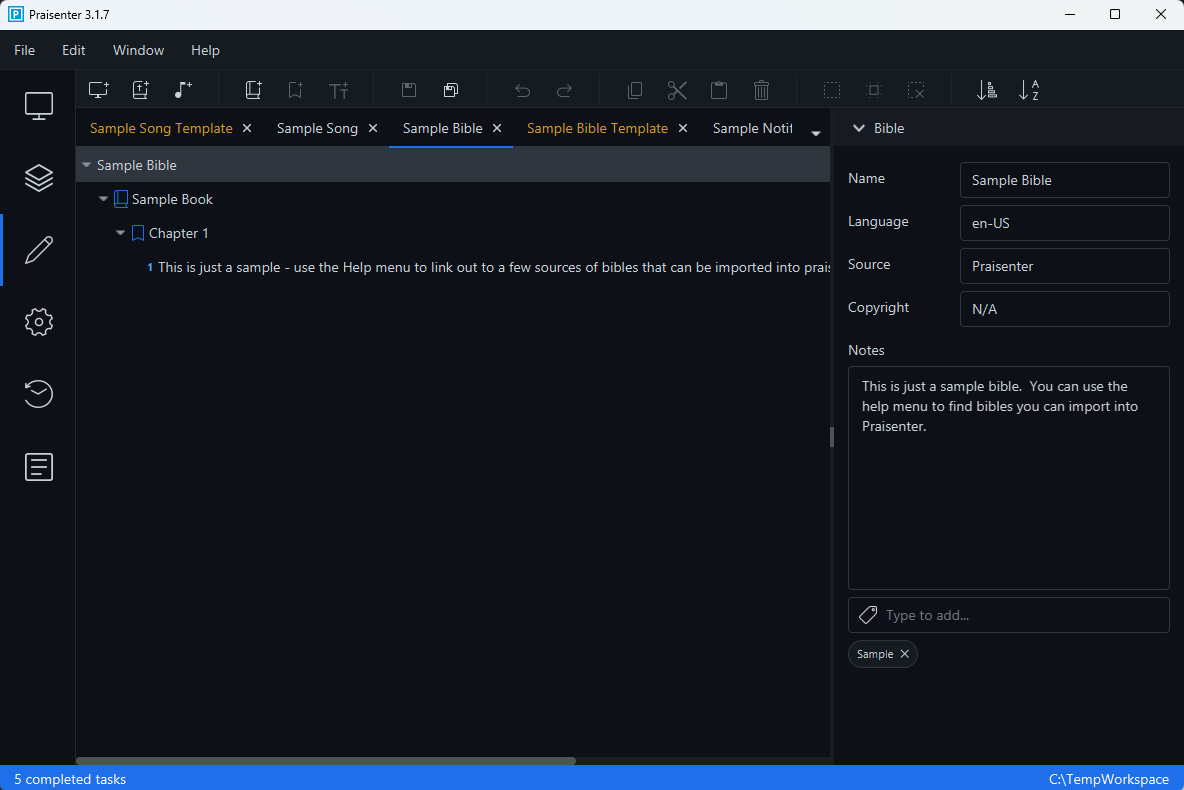
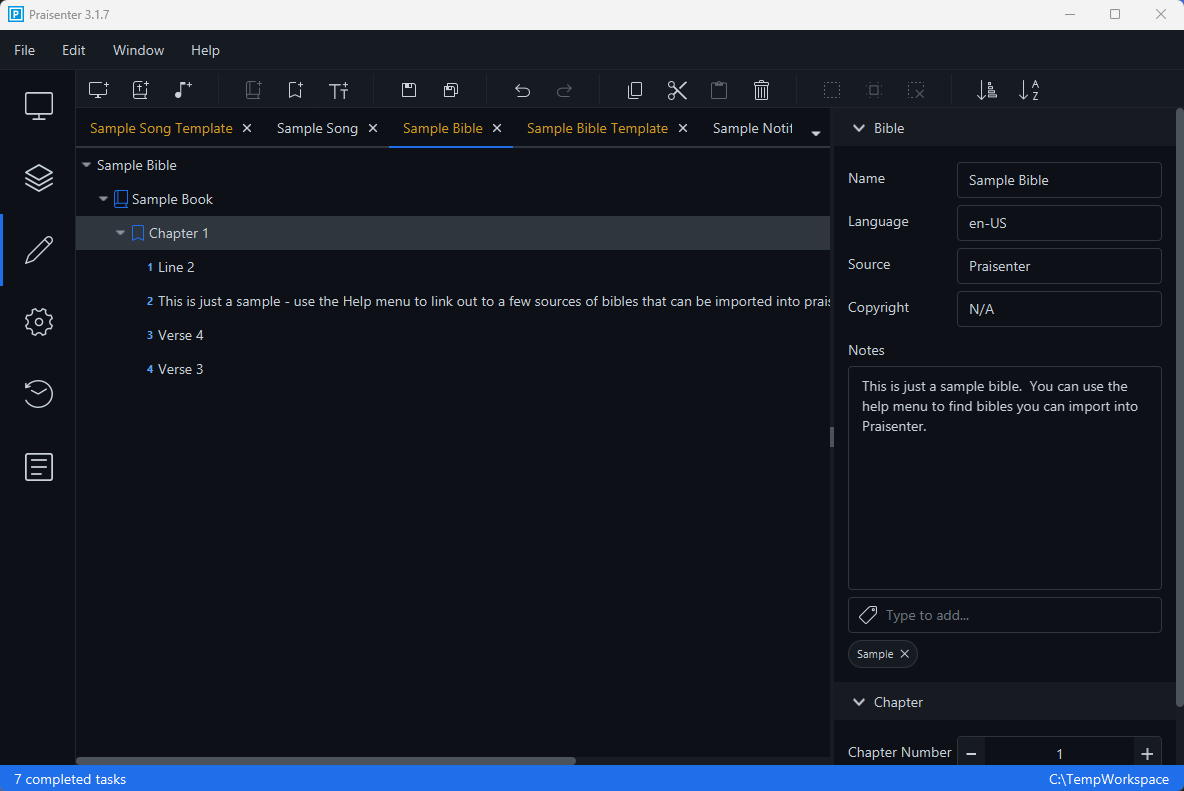
The Bible is edited using a tree-like view (see the example above). You can expand or collapse books and chapters to help locate what you need. Clicking on each node in this view allows you to edit it in the Side Pane on the right. As you click on each node, toolbar and menu options will become enabled or disabled based on the type of node selected. For example, if you select a chapter, you can create a verse or a chapter, but not a book. However, if you click on a book or bible, you can create a book.
NOTE: You can also copy, cut, and paste books, chapters, and verses within a single Bible or between Bibles.
Bulk edit#
Editing a Bible by selecting and editing each book, chapter, and verse can be very tedious. To speed things up, Praisenter has a bulk edit mode for books and chapters. When you bulk edit, the tree-view switches to a text view. It’s very important that you follow the guidelines below so that Praisenter can interpret your changes correctly.
You can trigger bulk editing from the Edit -> Bulk Edit menu, the context menu, or by clicking the Bulk Edit button in the Side Pane.
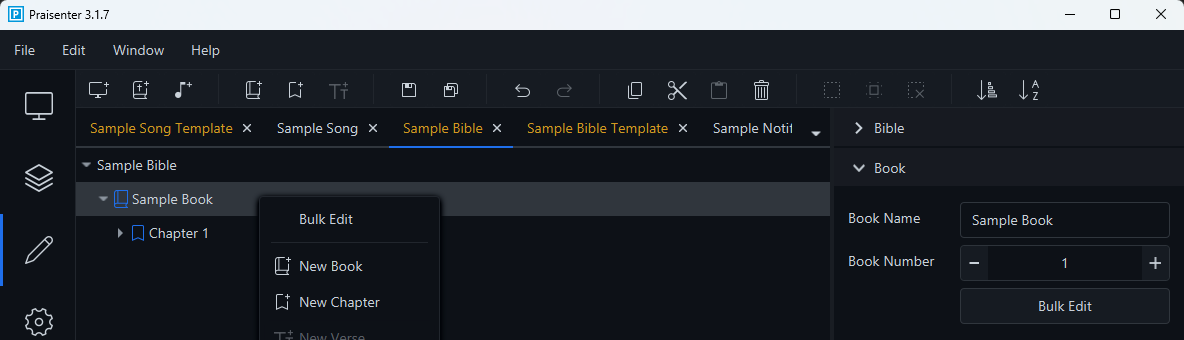
NOTE: You cannot bulk edit an entire
Bible.
Here’s an example of properly formatted book text:
1
2
3
4
5
6
7
8
1 Genesis
1
1 In the beginning God created the heavens and the earth.
2 Now the earth was formless and empty, darkness was over the surface of the deep, and the Spirit of God was hovering over the waters.

2
1 Thus the heavens and the earth were completed in all their vast array.
2 By the seventh day God had finished the work he had been doing; so on the seventh day he rested from all his work.
Here’s an example of properly formatted chapter text:
1
2
3
1
1 In the beginning God created the heavens and the earth.
2 Now the earth was formless and empty, darkness was over the surface of the deep, and the Spirit of God was hovering over the waters.
Empty lines and extra spaces at the start and beginning of lines will be removed automatically.
When you are finished editing, click the Done button in the bottom right corner of the editor. To discard your changes click the Cancel button.
Bulk edit - Book definition The definition of a book starts with a number followed by its name. There must be at least one space between the number and the name and they must appear on the same line. The book definition must be the first line in the editor.
Examples of accepted book definitions:
1
2
3
4
5
1 Genesis
 2 Exodus
66    Revelation
5 Song of Solomon
  11      This is a book title
Examples of invalid book definitions:
1
2
3
4
5
6
7
Genesis
 Genesis
1Genesis
3Song of solomon
Genesis 1
3 Song of
solomon
The examples above are invalid because:
- Lines one and two are missing the book number.
- Lines three and four are missing space between the book number and book name.
- Line five has the book number at the end, it should be at the beginning instead.
- Line six and seven represents one book, but it’s been placed on two lines. It should be one line.
Bulk edit - Chapter definition A chapter is defined simply by its number. When you bulk edit a chapter, the chapter definition must be the first line in the editor. However, when you bulk edit a book, the chapter definition must come after the book definition.
Examples of accepted chapter definitions:
1
2
1
 2
Examples of invalid chapter definitions:
1
2

Some text
The examples above are invalid because:
- The first line is invalid because nothing was provided.
- The second line is invalid because a chapter should only be a number.
Bulk edit - Verse definition The verse definition is very similar to the book definition - it’s the verse number, followed by at least one space, then the verse text. The verse must be on a single line.
Examples of accepted verse definitions:
1
2
3
4
1 This is the verse text
 3 This is the verse text
5     This is the verse text
 7        This is the verse text
Examples of invalid verse definitions:
1
2
3
4
5
This is the verse text
 This is the verse text
1This is the verse text
3 This is the verse
text for verse 3
The examples above are invalid because:
- The first and second lines are invalid because they are missing the verse number.
- The third line is invalid because there’s no space between the verse number and verse text.
- The fourth and fifth line are invalid because they are one verse, but have been split into two lines. The whole verse needs to be on a single line.
Reordering#
Sometimes your books, chapters, or verses may be out of order, and rearranging them manually can be tedious. Praisenter provides multiple ways to move content around:
- Start bulk editing and copy/paste definitions to where you need them.
- Click & drag books, chapters, and verse around with the left mouse button.
- Copy, cut, & paste books, chapters, and verses with the mouse & hotkeys
- Use the
Sort by Numbermenu command (see below)
Sort by number#
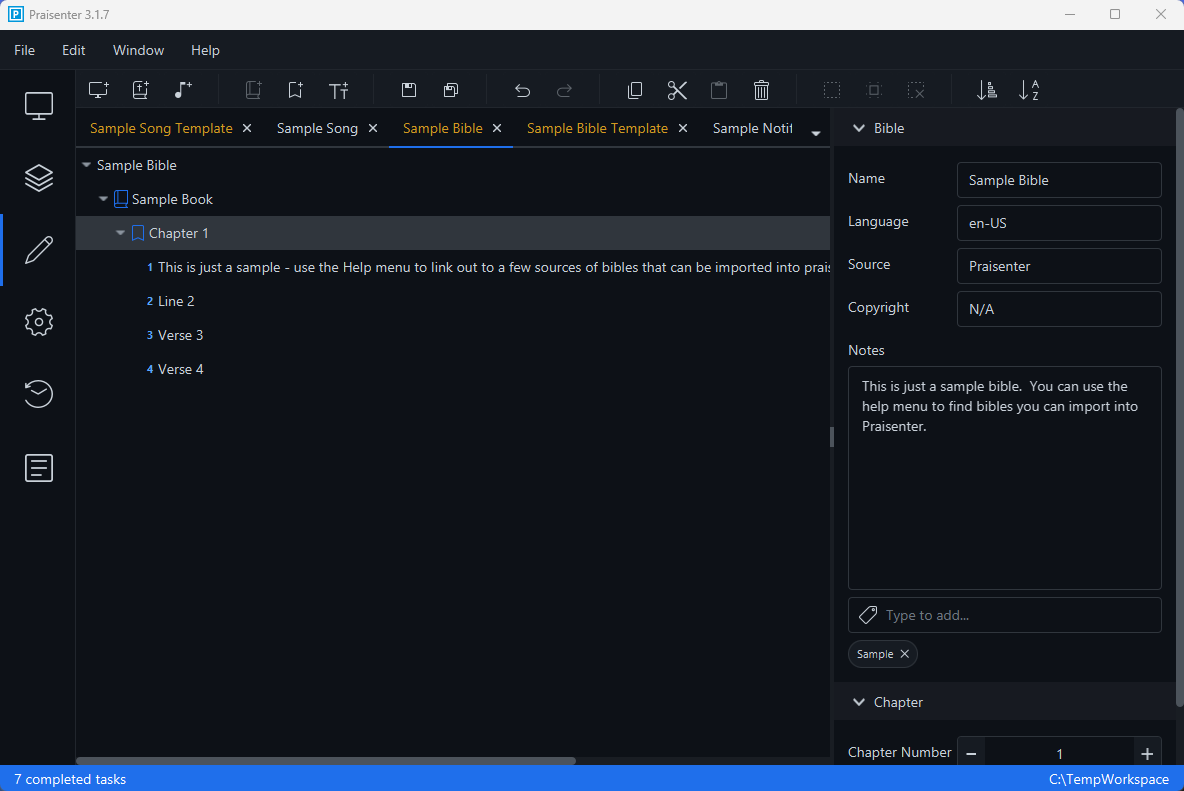
Using the Sort by Number menu command will do just that - it will reorder the books, chapters, or verses under the selected element based on their current number. For example, in the screenshot below, we reorder the verses inside Chapter 1 so they are sorted from smallest to largest based on their verse number.
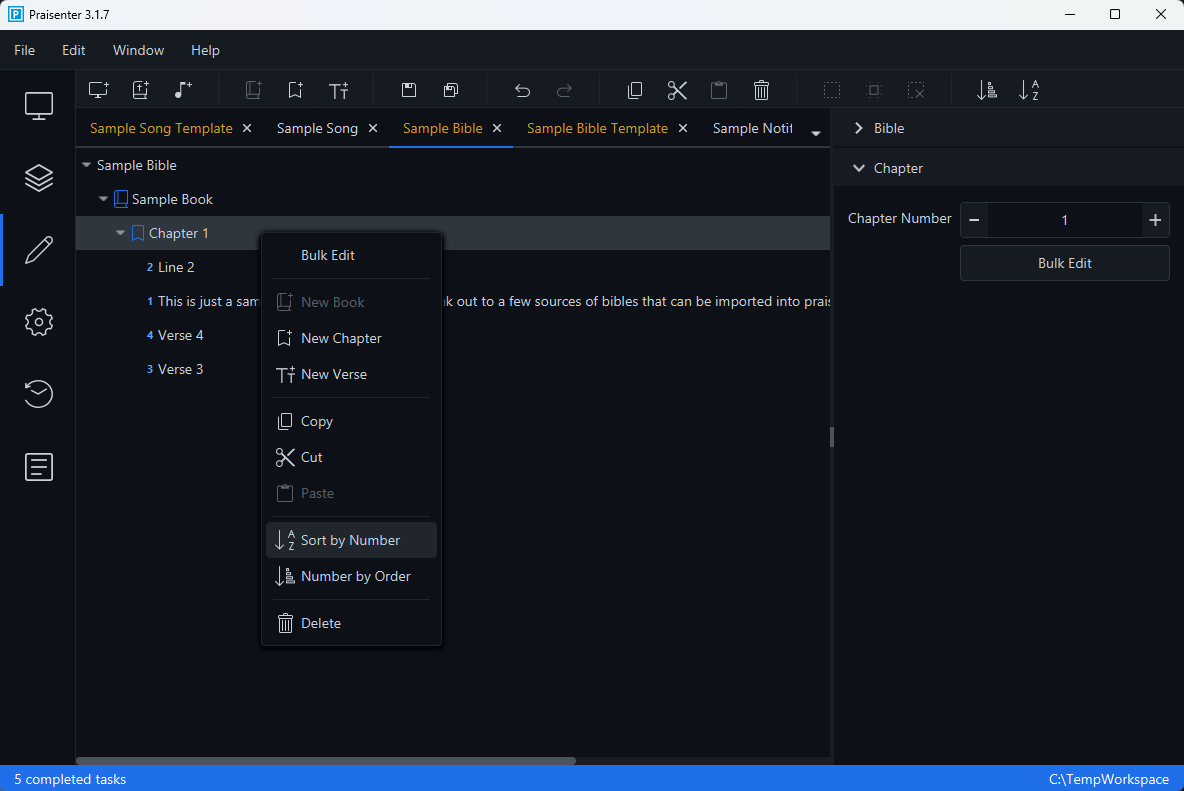
The screenshot below shows how the verses were rearranged based on their verse number.
Number by order#
Number by order is the opposite of Sort by number. Instead of sorting, this command renumbers books, chapters, or verses in the sequence they currently appear.
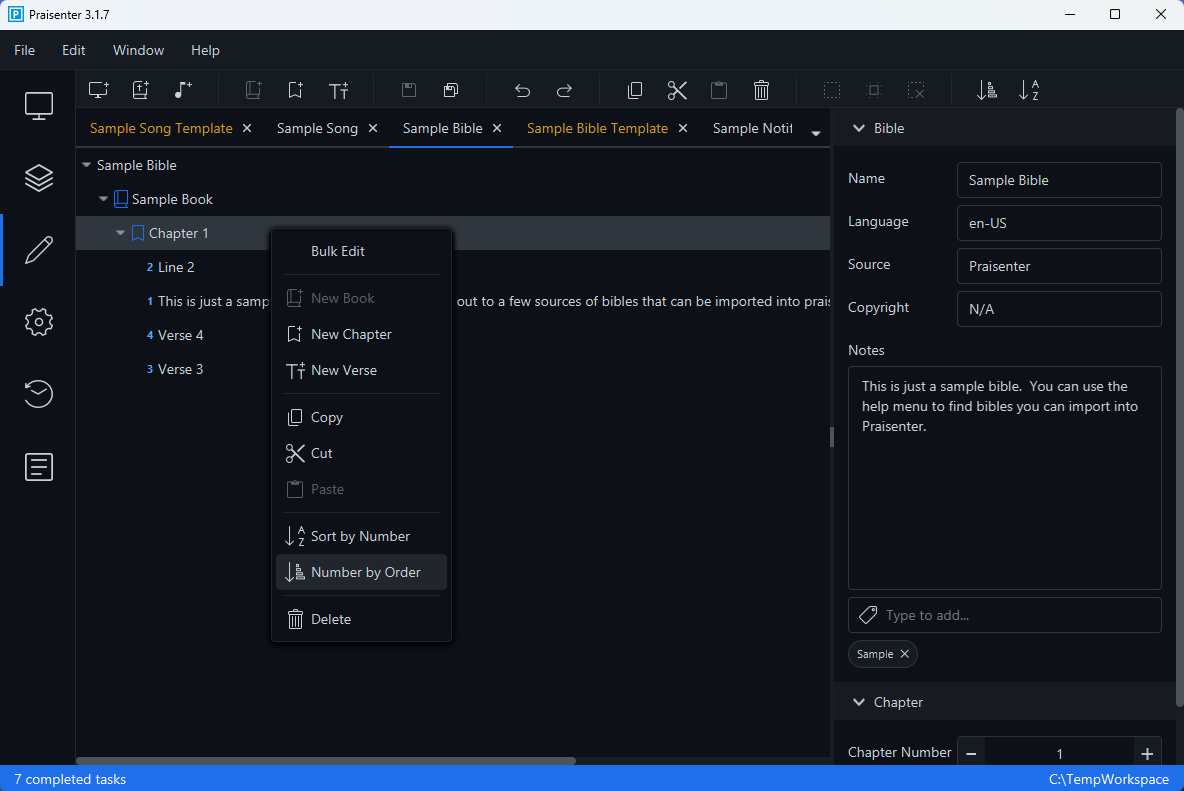
Using the example above, we renumber Chapter 1. Notice how the verses are in their original order, but the verses were renumbered sequentially from 1 to 4.