Editing
Praisenter allows you to edit Bible, slide, and song lyrics assets within the application. In this section of the manual, we’ll discuss the features that are shared across all the editors.
You can access the editor by clicking the pencil icon in the left-hand navigation bar. The editor supports editing of document-type assets like Bibles, song lyrics, and slides. Other assets (like media files) can only be renamed and tagged from the Library.
When you click on the editor without any documents open, you’ll see a hint on how to start editing. Here are a few ways to start editing:
- From the
File->New...menu commands. - From within the Editor, click one of the first three buttons in the toolbar to create a new document.
- From within the Library, double click an asset.
- From within the Library, select an asset and use the
Editcommand in the context menu.
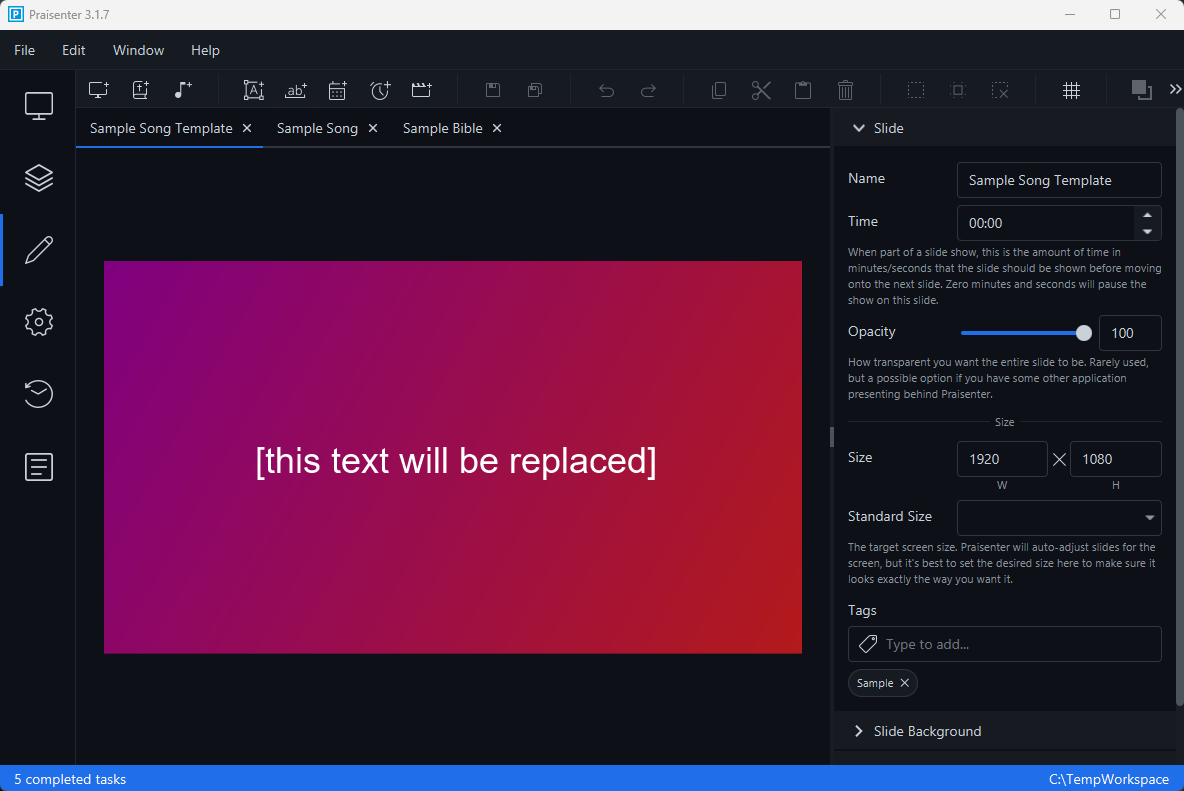
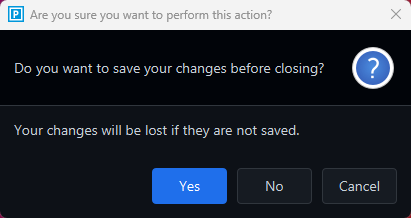
Each document you have open for editing appears as a tab in the Editor allowing you to work on multiple documents simultaneously. When you attempt to close a tab containing unsaved changes, you’re prompted to save, discard, or cancel. If the tab’s name appears in a different color, that signals that there are unsaved changes.

When you have a lot of documents open for edit, all the tabs may not be visible. You can scroll the tabs left and right using the mouse scroll wheel or using the down arrow  at the end.
Toolbar#
While editing an document, the toolbar displays commands applicable to the currently selected tab and the selected element within that tab. For example, since a slide is being edited in the screenshot below, the commands that relate to slides appear - buttons to create new slide elements, reorder elements, and the ability to snap those elements to a grid.

NOTE: The
button at the end of the toolbar will contain commands that can’t fit onto the toolbar.
Many of the toolbar commands are available from the File, Edit, and context menus as well.
Side pane#
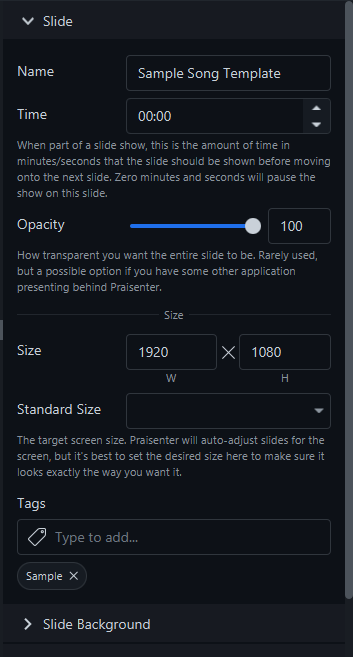
The Side Pane on the right of the editor is where you modify properties of the selected element. In the example below, a slide has been selected, so properties like the name, width, and height are editable. If a different element is selected, the properties for that element are displayed. Changes made in the Side Pane are immediately applied to the document so you can see the effects of your changes right away.
NOTE: The document properties are always visible regardless of what you have selected.
Saving changes#
Be sure to save frequently. Save using the File -> Save, File -> Save All, or File -> Save as... menu commands or their corresponding hotkeys. If you try to close an editor tab with unsaved changes, you will be prompted to save, discard or cancel. A similar confirmation is shown if you try to close the application or switch workspaces with unsaved changes.
NOTE: If you are editing a slide that is currently showing on a display, the display content will remain unchanged. However, if the slide is in a queue, the queued slide be updated when you save. If you have the slide selected as a template, the slide preview will also reflect any saved changes the next time you preview it.
When using the File -> Save as... command, Praisenter will prompt you to name the new document. The new document is saved to the library and opened as a new tab in the editor. The original document, and any edits you made, will still be available. If you don’t want to save the changes to the original document, you can discard your changes by closing the editor tab of the original document and choosing “No” when notified of unsaved changes.
Copy / cut / paste#
When editing an document, you can copy, cut, and paste elements. For example, imagine you are entering song lyrics and verse 1 and verse 2 are nearly identical - don’t create verse 2 from scratch - copy and paste verse 1 and then modify the copy. Another example is when you are editing multiple slides and you want some elements from Slide 1 on Slide 2, just select the elements and copy & paste them to Slide 2.
Rename / delete#
As mentioned in Rename / delete section, you have the ability to rename documents in the editor from the right Side Pane.
Delete, however, works differently. The Delete command now works on the element level instead of at the document level. What this means is that if you use the Delete key or menu commands, it will delete the selected element. For example, if you are editing a Slide and have an image selected, the delete command will delete the image, not the slide itself.
Undo / redo#
All editors support undo and redo. Undo allows you to reverse the last change you made and redo allows you to reapply the last change you made.
NOTE: Once you close an editor all the undo and redo history is lost.
Hotkeys#
You can do everything with the mouse, but some commands are easier with the keyboard. With that in mind, Praisenter has hotkeys, or key combinations, to perform common actions:
| Action | Windows | Ubuntu | MacOS |
|---|---|---|---|
| Save | Ctrl + S | Ctrl + S | Command + S |
| Save All | Ctrl + Shift + S | Ctrl + Shift + S | Command + Shift + S |
| Undo | Ctrl + Z | Ctrl + Z | Command + Z |
| Redo | Ctrl + Y | Ctrl + Shift + Z | Command + Shift + Z |
| Copy | Ctrl + C | Ctrl + C | Command + C |
| Cut | Ctrl + X | Ctrl + X | Command + X |
| Paste | Ctrl + V | Ctrl + V | Command + V |
You can find them all in the menus - the hotkeys are to the right of the action.