Miscellaneous
Praisenter includes a configurable set of default behaviors (called Settings) and offers feedback on operations, which can be used for troubleshooting.
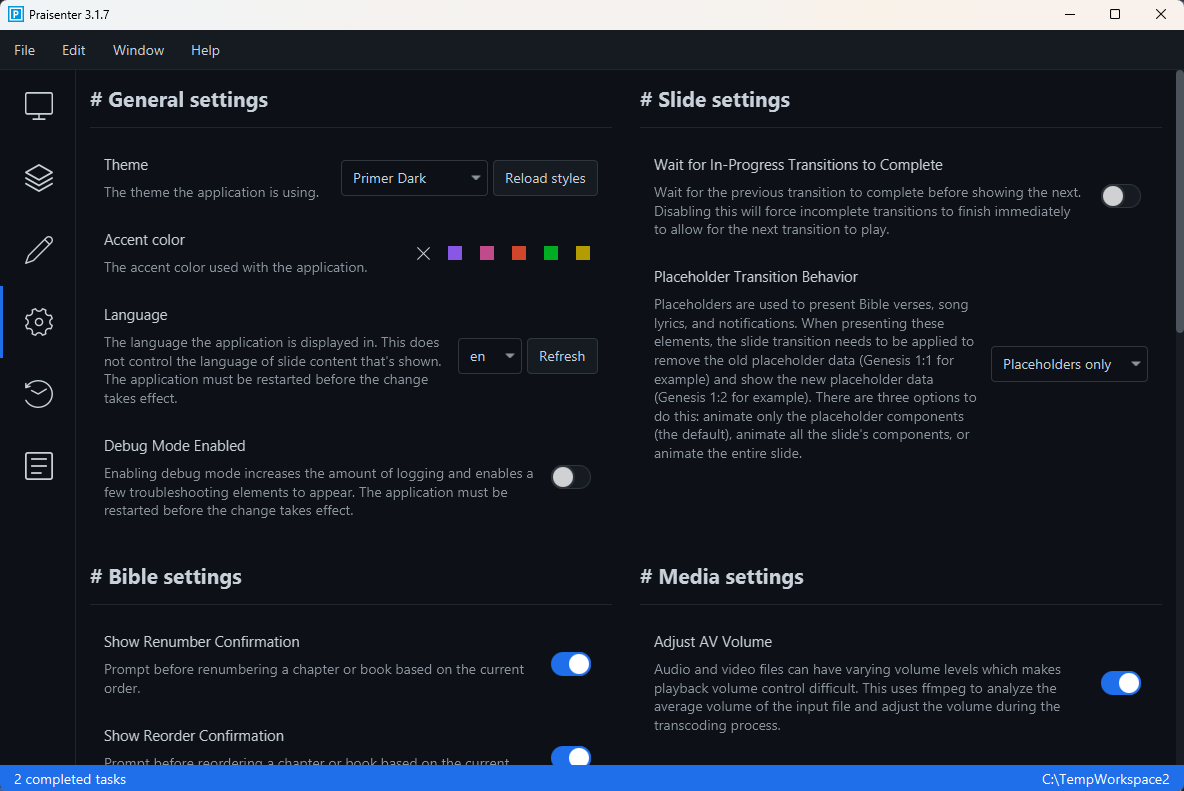
Praisenter’s default settings were chosen based on testing, experience, and the most common use cases. You can customize the application’s behavior via the settings tab. Settings are saved per workspace, so each workspace can be configured to behave differently.
NOTE: Some settings are best left unchanged unless you are familiar with what they do. We’ll highlight those when we get to them.
General settings#
These settings affect the entire application. Currently, the available options are Theme, Accent color, Language, and Debug Mode Enabled - we’ll describe each below.
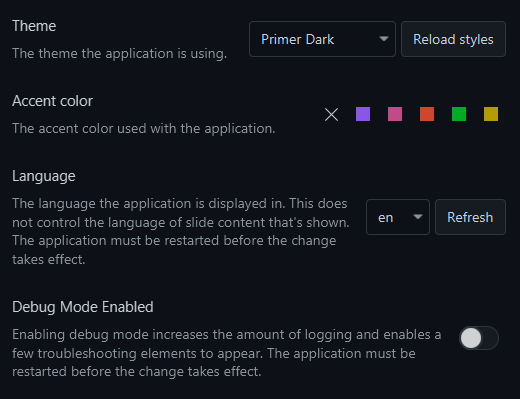
The Theme setting controls the overall appearance of Praisenter. There are several themes provided, each with light and dark variants. By default, Praisenter uses Primer Dark, chosen to reduce eye strain and minimize ambient light from the application.
NOTE: The
Reload stylesbutton exists for users who wish to customize the application’s appearance. Praisenter uses a CSS-like styling system. Accidentally clicking this button does nothing harmful, so don’t worry.
The Accent color setting determines the highlight color used throughout the interface to draw attention to UI elements. Because some users may have color-vision impairments, offering multiple accent options helps accessibility. The available accent colors are Blue, Purple, Pink, Orange, Green, and Yellow. Feel free to experiment and choose what works best for you.
The Language setting sets the language used throughout Praisenter. Currently, Praisenter is distributed in English only, but you can add your own translations if you like.
NOTE: To add translations, locate the
.Praisenter3folder on your system, open thelocalessubfolder, and find themessages.propertiesfile containing the English interface text. Copy that file, translate the text after the=signs, and save it in the same folder. The name of the file should follow the patternmessages_lang.propertieswherelangis the IETF BCP 47 language tag for the language contained in the file. For example, if you are creating a spanish file you would name itmessages_es.properties. After restarting Praisenter, you should be able to select the language for the file you created.
The Debug Mode Enable setting toggles extra logging and feedback from Praisenter, useful for troubleshooting. For instance, if you’re having problems importing media or presenting slides, enable this setting and share the logs when reporting issues.
Slide settings#
There are two settings for slide display. These settings effect how slides are transitioned during presentation.
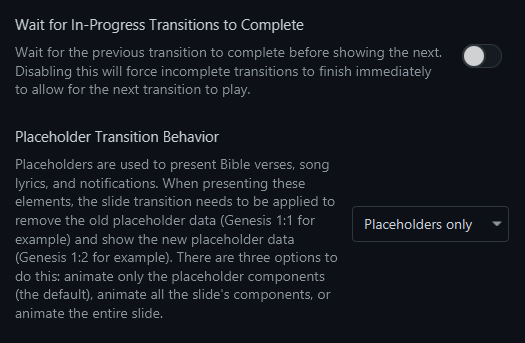
The Wait for In-Progress Transitions to Complete setting determines what happens if you queue up a new slide while a current slide is still transitioning. Suppose you click Show for Slide A (which has a 5-second transition), then quickly click Show for Slide B before the first transition finishes. With this setting, you can choose whether to:
- Wait for
Slide Atransition to finish before showingSlide B. - Immediately cancel
Slide Atransition and switch toSlide B.
By default, Praisenter cancels the transition of Slide A and immediately shows Slide B.
The Placeholder Transition Behavior setting controls how placeholders, static content, and backgrounds transition when using slides with placeholder components. For example, if you’re showing a Bible verse slide with a video background, placeholder text, and perhaps a static image/icon, this setting determines what animates when you move to the next slide:
Placeholders only- Only the placeholder components are transitioned. Video backgrounds continue to play and static images/text remain as-is.All content- Placeholder components and static images/text are transitioned. However, backgrounds remain unchanged.Entire slide- Everything transitions: placeholders, static images/text, backgrounds, everything. If the background is a video, the video is stopped and restarted.
Bible settings#
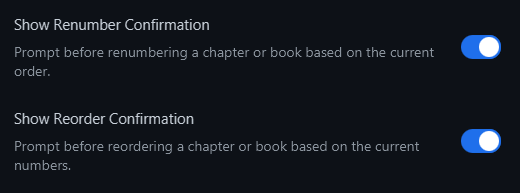
These settings let you control whether confirmation dialogs appear when using the Sort by number and Number by order features. When you use those features, the application may ask if you want to continue — and you can re-enable those confirmations here if you previously disabled them.
Media settings#
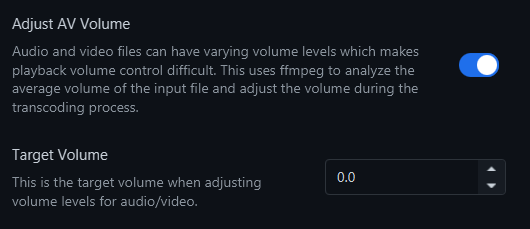
Media-related settings apply when importing audio or video files. As of version 3.1.7, these settings only affect media that includes audio. When you import such media, Praisenter uses FFmpeg to detect the audio mean_volume - and if the volume exceeds the configured target (in dB), it will automatically adjust it during transcoding. If you encounter volume problems, try disabling this feature and re-import your media.
Audio settings#
These settings only apply to audio media. While you might rarely present audio-only media using Praisenter (other tools offer more control) - Praisenter still supports it. Similar to video, imported audio is transcoded to a format that Praisenter natively play. The relevant settings are:
NOTE: Since media is transcoded, Praisenter supports a wide array of formats. However, if you choose to disable transcoding, Praisenter natively supports the following formats listed here.
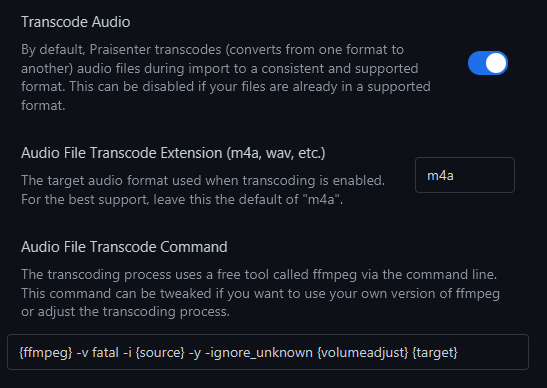
Transcode Audio- You may disable automatic transcoding; but if you do, be aware that Praisenter may not support the native format of your audio file.Audio File Transcode Extension- Lets you select the file extension for the target format (the default ism4a). If you change this, make sure the resulting format is supported by Praisenter natively.Audio File Transcode Command- Allows advanced users familiar with FFmpeg to customize exactly how the audio is transcoded during import.
NOTE: These settings can cause problems if misconfigured. If audio import or playback fails or behaves unexpectedly, revert to the defaults listed below:
| Setting | Default Value |
|---|---|
| Audio File Transcode Extension | m4a |
| Audio File Transcode Command | {ffmpeg} -v fatal -i {source} -y -ignore_unknown {volumeadjust} {target} |
Video settings#
These settings only apply to video media. During import of video media, Praisenter will transcode the video file to a supported format to ensure the best video playback when used. The settings below control this behavior.
NOTE: Since media is transcoded, Praisenter supports a wide array of formats. However, if you choose to disable transcoding, Praisenter natively supports the following formats listed here.
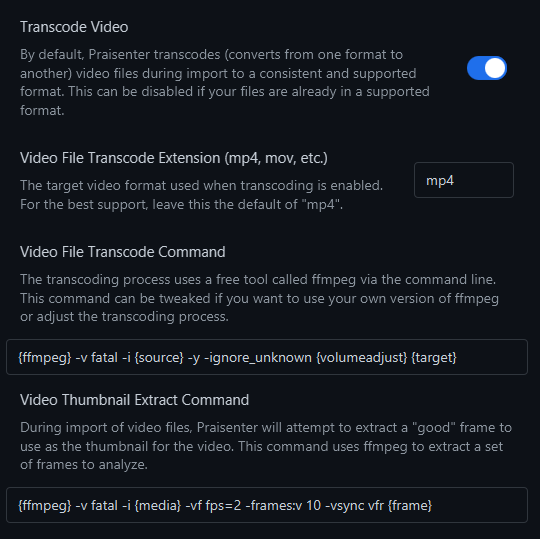
Transcode Video- You may disable automatic transcoding; but if you do, be aware that Praisenter may not support the native format of your video file.Video File Transcode Extension- Lets you select the file extension for the target format (the default ismp4). If you change this, make sure the resulting format is supported by Praisenter natively.Video File Transcode Command- Allows advanced users familiar with FFmpeg to customize exactly how the video is transcoded during import.Video Thumbnail Extract Command- Controls how a thumbnail is generated for previewing videos. Allows advanced users familiar with FFmpeg to customize exactly how to perform this task.
NOTE: These settings can cause problems if misconfigured. If audio import or playback fails or behaves unexpectedly, revert to the defaults listed below:
| Setting | Default Value |
|---|---|
| Audio File Transcode Extension | mp4 |
| Audio File Transcode Command | {ffmpeg} -v fatal -i {source} -y -ignore_unknown {volumeadjust} {target} |
| Video Thumbnail Extract Command | {ffmpeg} -v fatal -i {media} -vf fps=2 -frames:v 10 -vsync vfr {frame} |
NDI® settings#
NDI®, short for Network Device Interface, is a software standard for transmitting video and audio over an IP network. Creating an NDI® output is useful when using another application, like OBS, to combine, overlay, and merge content coming from many sources. For instance - you may have a live video feed coming from a camera that you’d like to overlay with some content from Praisenter.
NOTE: NDI® is a registered trademark of Vizrt NDI AB
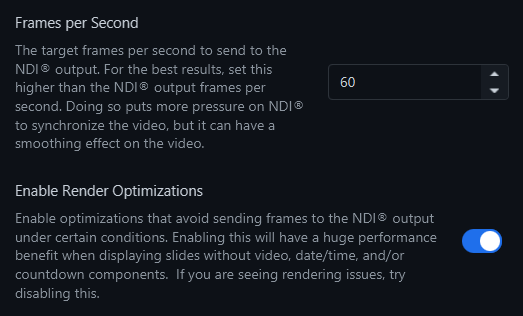
When you configure an NDI® display you assign a “frames per second” (FPS) capture rate for that display. This setting controls how many frames Praisenter will transmit, which must be higher than the display’s capture rate. Changing this setting can affect performance. The default value of 60 FPS is typically a good balance between performance and quality.
The Enable Render Optimizations setting toggles whether Praisenter analyzes the content currently being displayed over NDI®. If the content isn’t changing (e.g. static image or text), it will skip sending redundant frames - which can significantly improve performance. This optimization is enabled by default and recommended; but you may turn it off if you encounter problems.
Zoom#
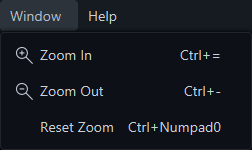
The Zoom feature (available under the Window menu) lets you scale the application interface: you can zoom out to display more content on screen, or zoom in to enlarge text, buttons, and controls - useful for better visibility or for touch-screen use. If you want to go back to the original interface size, use the Reset Zoom menu command.
Task log#
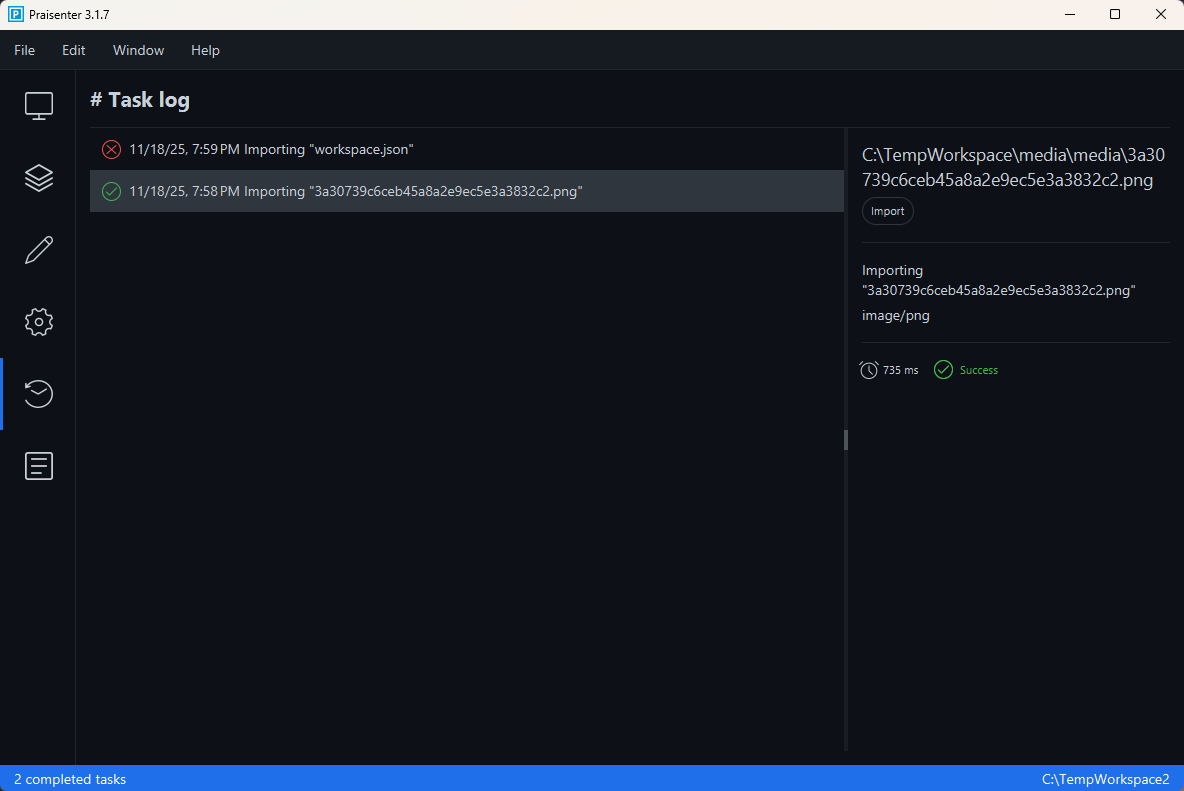
As you perform actions in Praisenter (e.g. importing audio/video), they are recorded in the Task Log, which provides feedback on past or pending operations. This is especially useful when tasks take time (like media import). The Task Log records:
Name- A description of the task.Operation- The kind of action performed (e.g. Save, Import).Type- The item type the task operated on (e.g. Bible, Song Lyrics, or the file’s MIME type).Status- The current or final state of the task. Options: In Progress, Success, or Failed.Duration- How long the task took.Description- A human-friendly description of the operation (e.g. “Saving TEST Bible”).Error Message- If the task failed, the error message.
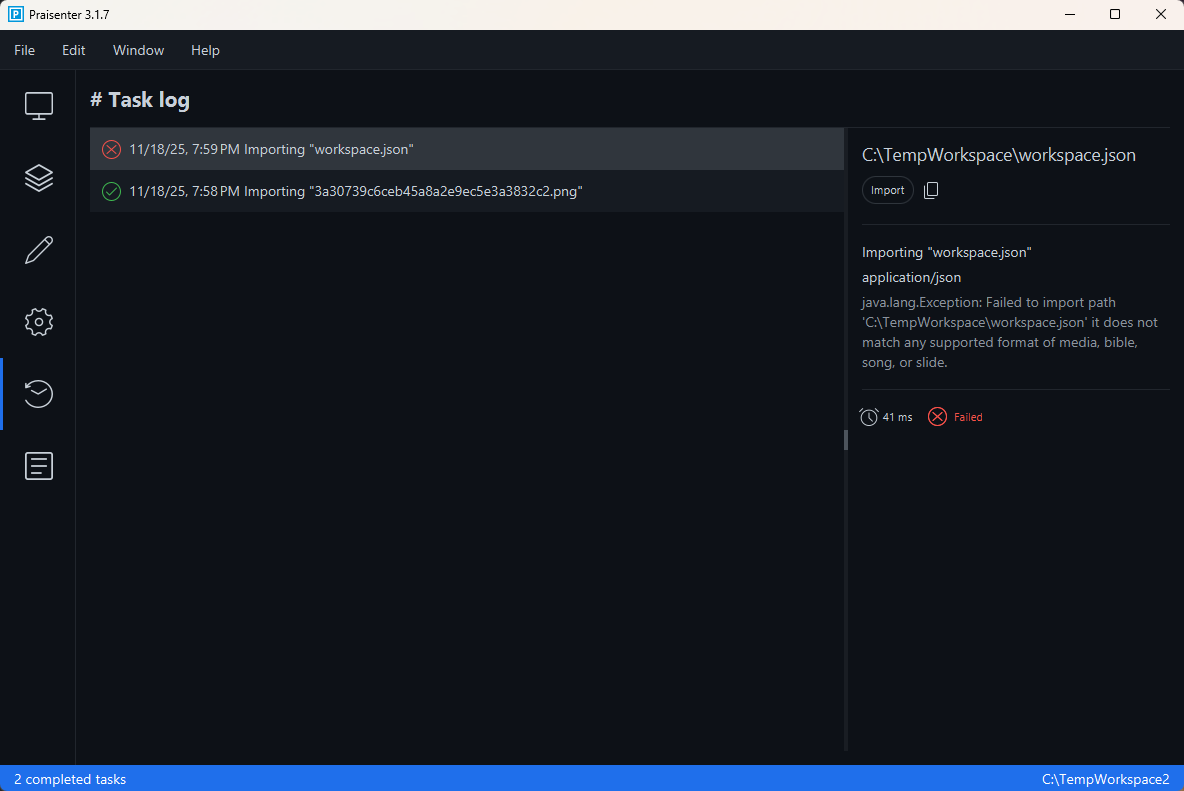
If a task fails, a copy button appears - you can use it to copy the error message for reporting the error (e.g. on the Praisenter discussion board).
NOTE: Task Log entries are not saved permanently - the log clears when you close Praisenter.
Log files#
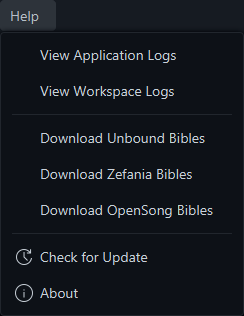
Under the Help menu, you can access two kinds of logs: Application Logs and Workspace Logs. Selecting these will open a File Explorer window at the location where the logs are stored. These files may contain useful information if you’re experiencing problems with Praisenter - and are often necessary when reporting issues.
Check for update#
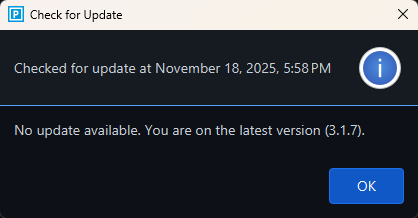
The Check for Update command (found under the Help menu) lets you check if you are using the latest version of Praisenter. An internet connection is required for this operation. If you installed Praisenter from the Microsoft Store or Snap Store, you will automatically get updates (assuming you are connected to the internet). If you installed via an MSI or DEB, you must manually re-install when a new version is released.
NOTE: Installing from the Microsoft Store or Snap Store ensures that you get a legitimate copy of Praisenter - never download Praisenter from any site other than the official github page.
About#
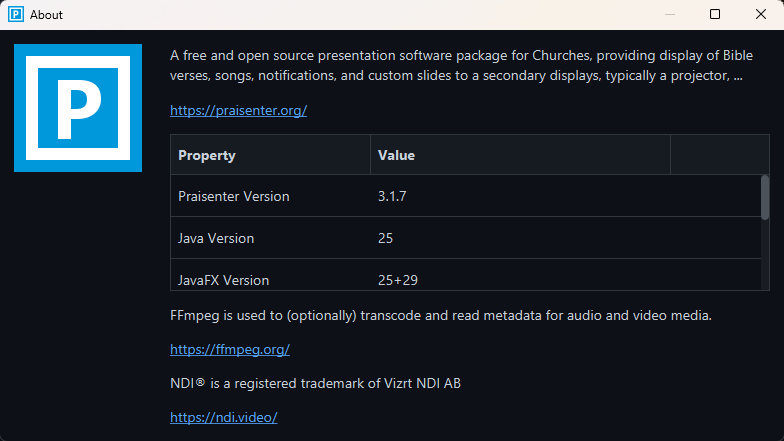
The About command (under the Help menu) gives details about your currently installed version of Praisenter - this information is useful when reporting problems or checking whether you are up to date.