Song Lyrics
Praisenter provides the ability to use song lyrics as part of a presentation and show multiple lyrics at the same time.
Praisenter doesn’t come with any song lyrics or songbooks, but you can import lyrics from other sources. A popular source for song lyrics is SongSelect. Supported file formats include:
- OpenLyrics
- ChordPro (as of 3.1.7)
- SongSelect (as of 3.1.7)
Later in the manual, you can find a few other ways to add song lyrics.
Lyrics / sections#
In Praisenter, song content is split into two distinct categories: lyrics and sections. A section is simply a paragraph of text representing a verse of a song - something like verse 1, bridge, or chorus. Sections are grouped together into lyrics. Lyrics can also include authors and songbook references.
What’s interesting is that each song in Praisenter can have multiple lyrics. That means you could have two different translations of a song in the same document. In the example below, notice how there are multiple lyrics under the song: “My Special Song” and “Mi Canción Especial”. Also notice that each lyric has its own authors, songbooks, and sections.
NOTE: Praisenter does not support styling, chords, music notation, or other markup in sections or lyrics.
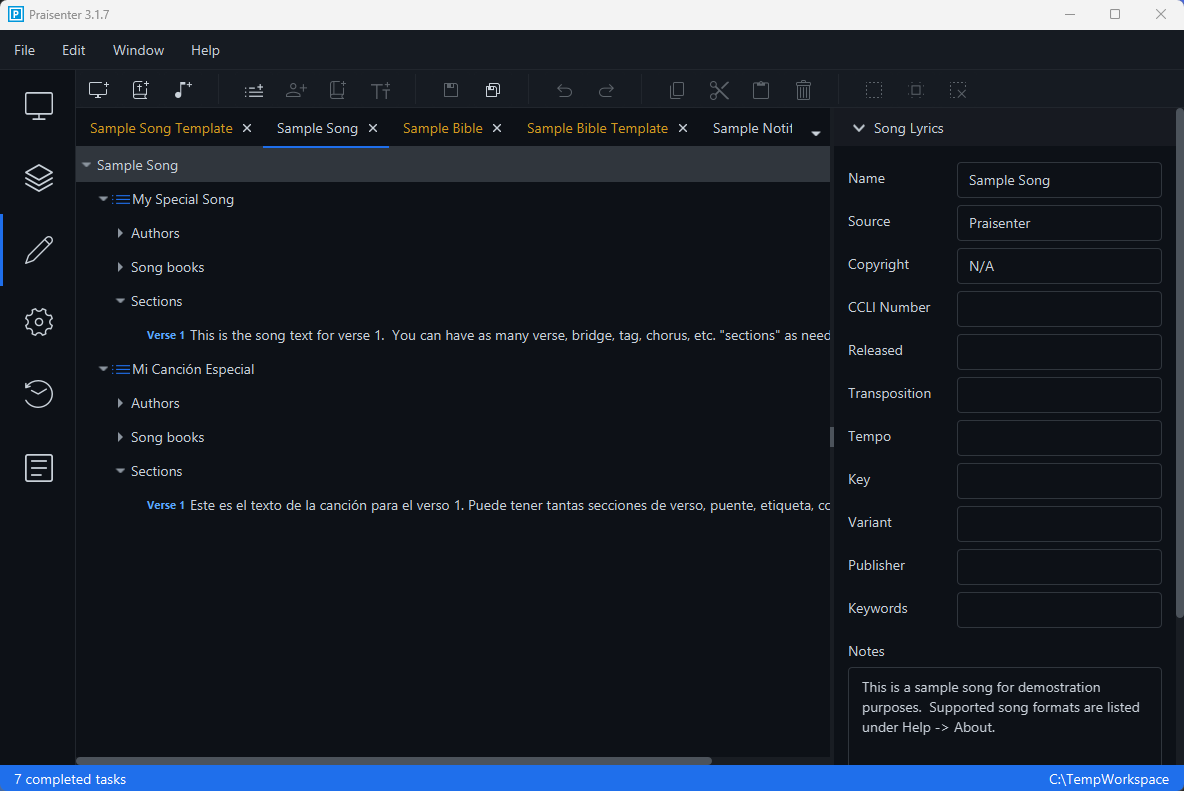
NOTE: As mentioned earlier, since the song above is structured this way, you can show both the English Verse 1 and the Spanish Verse 1 on a single slide during a presentation, provided you’ve created a slide template to do so.
A song is edited using a tree-like view (see the example above). You can expand and collapse lyrics, authors, and songbooks. Clicking on any node in the view will allow you to edit it in the Side Pane on the right side of the editor. As you click on each node, toolbar and menu commands will enable and disable accordingly. For example, if you select a lyrics node, you can create a section, author, or songbook. However, if you click on the song node, you can only create a new lyrics.
NOTE: You can also copy, cut, and paste lyrics, sections, authors, and songbooks within a single song or between songs.
Bulk edit#
Editing a Song by selecting and editing each node can be very tedious. With that in mind, Praisenter provides a way to bulk edit lyrics. When bulk editing, the editor switches to a text view. It’s very important that you follow the guidelines below to ensure that Praisenter can interpret your changes correctly.
You can trigger bulk editing by selecting a lyrics node and using the Edit -> Bulk Edit menu, the context menu, or the Bulk Edit button in the Side Pane.
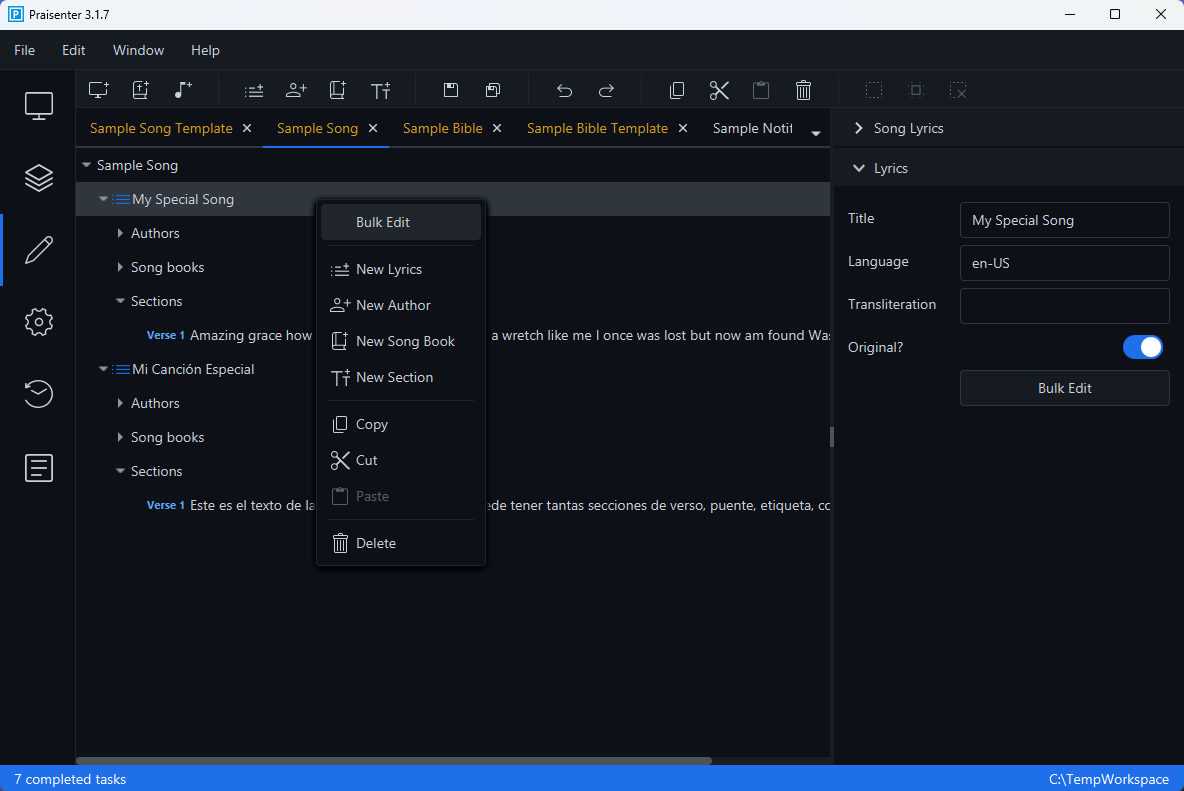
NOTE: You cannot bulk edit an entire
Song.
Here’s an example of properly formatted text when bulk editing:
1
2
3
4
5
6
7
8
9
10
11
12
13
My lyric title

Verse 1
Amazing grace how sweet the sound
That saved a wretch like me
I once was lost but now am found
Was blind but now I see

Chorus
'Twas grace that taught my heart to fear
And grace my fears relieved
How precious did that grace appear
The hour I first believed
The first line should be the title of the lyrics - usually the name of the song. Then there must be an empty line (on line 2 above). After the first empty line, you can begin writing the song verses. Start with the verse type or name - in the example above it’s Verse 1. On the next line, continue with the lines that make up that verse. To start a new verse, create an empty line and repeat the process. For example, the empty line on line 8 signifies that a new section is starting.
When you are done editing, click the Done button in the bottom-right corner of the editor. You can discard your changes by clicking the Cancel button.
Incorrect Examples
The following is incorrectly formatted because it’s missing the blank line after the lyric title My lyric title.
1
2
3
4
5
6
My lyric title
Verse 1
Amazing grace how sweet the sound
That saved a wretch like me
I once was lost but now am found
Was blind but now I see
The following is incorrect because there’s a blank line in between the section name, Verse 1, and the verse text, Amazing grace how sweet the sound:
1
2
3
4
5
6
7
8
My lyric title

Verse 1

Amazing grace how sweet the sound
That saved a wretch like me
I once was lost but now am found
Was blind but now I see
The following is incorrect because there’s no blank line between the last line of Verse 1, Was blind but now I see, and the start of Chorus:
1
2
3
4
5
6
7
8
9
10
11
12
My lyric title

Verse 1
Amazing grace how sweet the sound
That saved a wretch like me
I once was lost but now am found
Was blind but now I see
Chorus
'Twas grace that taught my heart to fear
And grace my fears relieved
How precious did that grace appear
The hour I first believed
Reordering#
At times, you may have sections that are out of order, and reordering them manually can be a chore. Praisenter offers a few ways to reorder them:
- Start bulk editing and copy/paste text around as needed.
- Click and drag nodes around with the left mouse button.
- Copy, cut, and paste nodes with the mouse and hotkeys
PDF import#
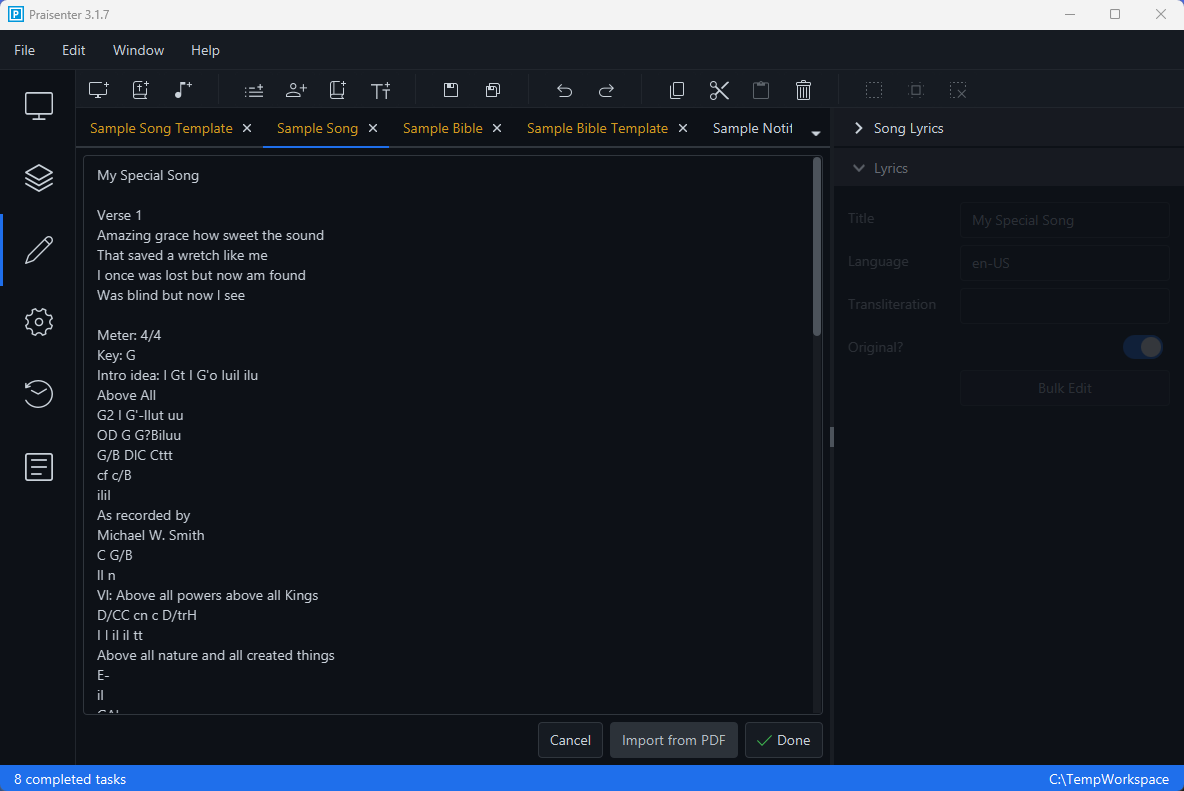
A feature specific to song editing is PDF Import. This feature only appears when you are bulk editing lyrics. To import, click the Import from PDF button in the bottom-right corner of the editor. Praisenter will load the PDF, read the text from it, and place it into the text view.
NOTE: The PDF import process is primarily used to extract text from a PDF. It will NOT format the text it extracts to match the requirements of the bulk editor, so make sure you review the extracted text and format it properly before saving.
For example, in the screenshot below, I’ve imported a rather nasty PDF document called “Above All”.
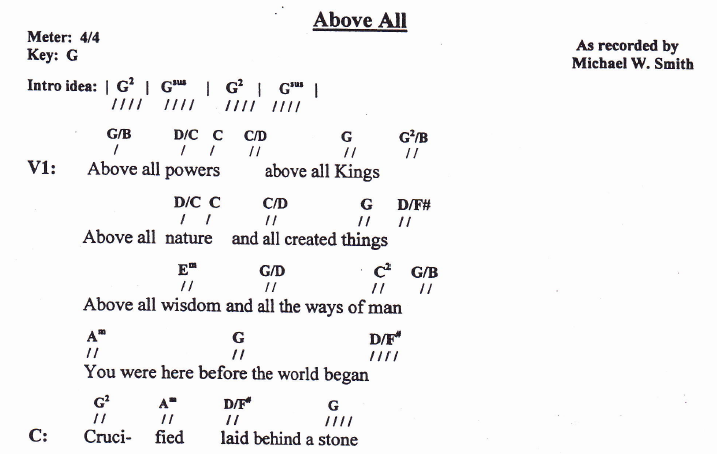
You can see that the text from the document was extracted, but it’s not formatted properly (it’s a mess for sure).
After a minute of manual clean up: