Workspaces
A workspace in Praisenter is a folder on your computer where all your content (Bibles, slides, videos, etc.) is stored.
Workspaces keep your content separated and organized - for example, you might have one workspace for your main services and another for youth events.
NOTE: You must select a workspace before launching Praisenter.
Creating workspaces#
On start up, Praisenter will always ask you to select a worksapce. When selecting a new workspace, Praisenter will setup a few things to ensure the workspace is ready for use (these steps happen in the background). There are a few ways to pick a workspace:
- You can use the drop down to select a previously selected workspace
- You can use the folder icon to select folder
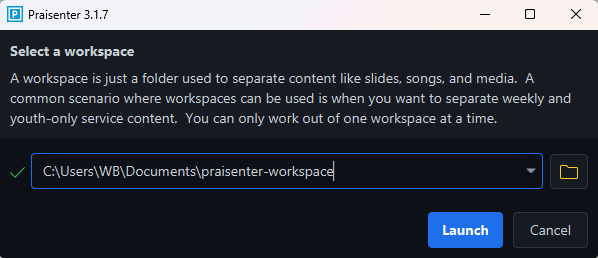
You’ll receive an error if you choose a folder with contents unless Praisenter detects it as an existing workspace. Once you have selected the workspace, click the Launch button to continue.
NOTE: When creating a new workspaces, always use an empty folder.
Switching workspaces#
You can switch between workspaces at any time. A workspace must be selected when you launch Praisenter as shown above in the Creating a workspace section. You can also switch workspaces after Praisenter has been launched by using the File -> Switch Workspace menu.
When you switch to a different workspace, the current workspace is closed. Any unsaved documents should be saved or discarded and any content currently presenting to a display should be cleared before switching.
NOTE: Praisenter will warn you of any unsaved documents before switching workspaces, but does not warn you if you have content showing on a display.
You can also create a new workspace from the File -> Switch Workspace menu. Just like switching workspaces, make sure any unsaved documents are saved or discarded and that any content you are presenting is cleared before creating a new workspace.
Removing workspaces#
Removing a workspace can be done from the workspace selection screen when the application starts. From here you can use the trash can icon to remove the selected workspace.
NOTE: Removing a workspace from here only removes it from the list of workspaces to choose from. All files at that location are left as-is. You’ll need to manually delete/clean up that folder.
A confirmation dialog will show to confirm that you want to remove the workspace:

Workspace upgrade#
When selecing a workspace, Praisenter checks whether it’s an existing workspace or a new workspace. If it’s an existing workspace, Praisenter checks the version of the workspace. If the workspace was last open in an old version of Praisenter, then it will be upgraded to the latest version. Upgrading a workspace is usually a quick activity, but there could be upgrades in the future that take a significant amount of time.